Explainer
Will a Portable Monitor Work With Your Laptop? USB-C Compatibility Explained
Many portable monitors need DisplayPort Alt Mode over USB-C, and not every USB-C port provides it. Here is how to check your laptop before you buy.
Updated November 11, 2026 · Based on 12 sources · How we research
Portable monitors are sold as plug and play, but plenty of first-time setups end in a black screen. The root cause is almost always the same: USB-C is a connector shape, not a feature list, and only certain USB-C ports can actually carry video. This guide explains DisplayPort Alt Mode in plain words, shows you how to confirm whether your specific laptop has it, and tells you what to do if it does not. It is written for someone who is about to buy their first portable monitor or already owns one that is not working.
Why is your portable monitor showing a blank screen?
The pattern is familiar. You plug the monitor into your laptop with the cable from the box, the backlight comes on, and nothing appears. Often the laptop even reports that it is charging. The reason is that USB-C ports vary in what they can do. Plugable's engineering team describes the port as a connector shape that may or may not carry video, power, or data behind the scenes. A port that only negotiates power or basic data will happily charge the monitor but will never send it a picture.
Portable monitor brands confirm this is the single most common support issue. Arzopa's no-signal troubleshooting page and ViewSonic's portable monitor troubleshooting guide both start by telling the buyer to confirm that the laptop's USB-C port supports DisplayPort Alt Mode, because a cable or input switch alone will not fix a port that is not wired for video.
What is DisplayPort Alt Mode?
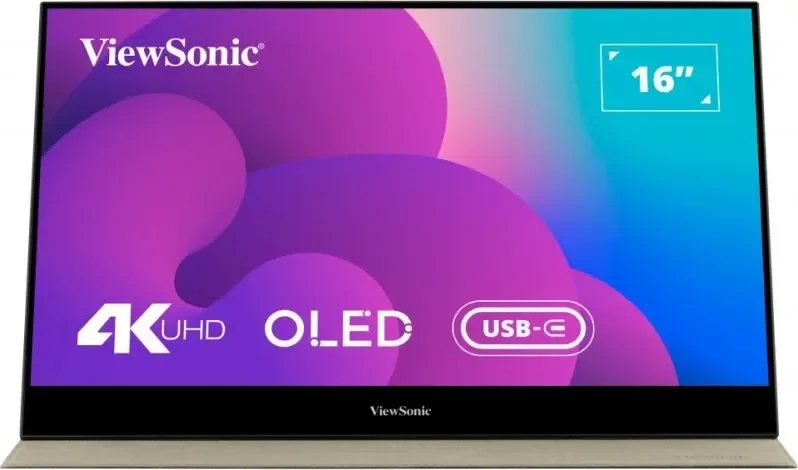
DisplayPort Alternate Mode, usually shortened to DP Alt Mode, is the specification that reroutes some of the high-speed lanes inside a USB-C connector to carry a real DisplayPort video signal. BenQ's technical article on DP Alt Mode explains that a full-function USB-C connector has four high-speed lanes. Alt Mode can dedicate all four to video, which is how a single USB-C cable can carry 4K 60 Hz to a display like the ViewSonic VX1655-4K-OLED, or it can split two lanes for video and leave two for USB data.
The handshake is automatic. Plugable's Alt Mode knowledge base describes it as a negotiation that happens when the source device, the port, the cable, and the display all support the required mode. If any of those four pieces is missing Alt Mode, the laptop silently falls back to power or data, and you see a blank screen. Most portable monitors in the best portable monitors ranking list DisplayPort Alt Mode as a requirement in their spec sheets, including the Espresso 15 Pro, the Dell P1424H, and the Lenovo ThinkVision M14t Gen 2.
How do you check whether your laptop USB-C port supports video?
There are three practical checks, from easiest to most definitive. The first takes thirty seconds. Look at the icons printed next to the USB-C port on your laptop chassis. Plugable's visual port decoder shows that a small D-shaped display icon, a DP label, or a Thunderbolt lightning bolt next to the port indicates video output capability. A lone battery icon means the port is charging only. A plain USB trident with a speed number means data but says nothing about video.
The second check is the spec sheet. Go to the manufacturer's product page for your exact laptop model and search the USB-C row for the phrases DisplayPort Alt Mode, DisplayPort over USB-C, Thunderbolt, or USB4. KTC's support team notes that a string like USB-C 3.2 Gen 2 by itself is not confirmation of video; that string describes a data speed, not Alt Mode.
The third check is an operating system test with the monitor already plugged in and powered. On Windows 11 open Settings, System, Display and look for a second display entry. On macOS open System Settings, Displays and watch for a new panel to appear. If the monitor is on but neither OS registers a second display, the port is not negotiating Alt Mode and the problem is not software.
- DisplayPort D-shape icon or DP label: video over USB-C is supported
- Thunderbolt lightning bolt icon: supports DP Alt Mode by requirement
- Battery icon only: charging only, no video
- USB trident with SS or a speed number (5 Gbps, 10 Gbps, 20 Gbps): data but not necessarily video
- No icon at all: check the spec sheet, do not assume
Do you need Thunderbolt 3, 4 or USB4?
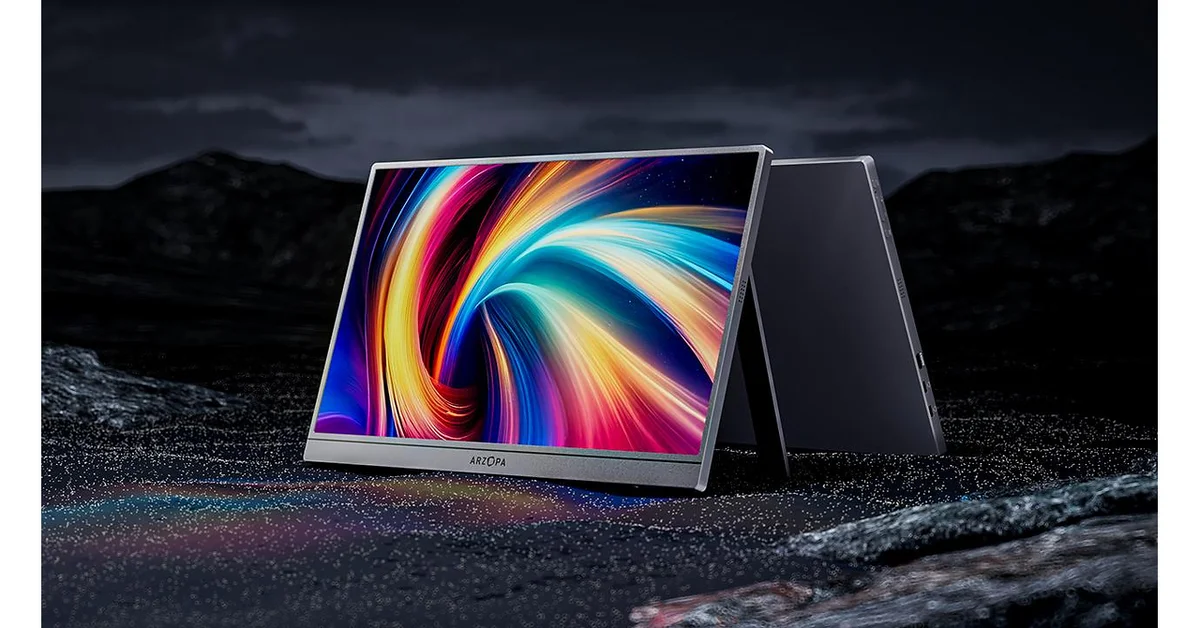
For a single portable monitor, Thunderbolt is not required. Plain DP Alt Mode over USB-C is enough to drive any single-panel model in the ranking, from the 4K Espresso 15 Pro at 3840x2160 to the 180 Hz Arzopa Z3FC. The ViewSonic VX1655-4K-OLED datasheet lists USB-C with DisplayPort Alt Mode and 60W Power Delivery as its video input, nothing more exotic.
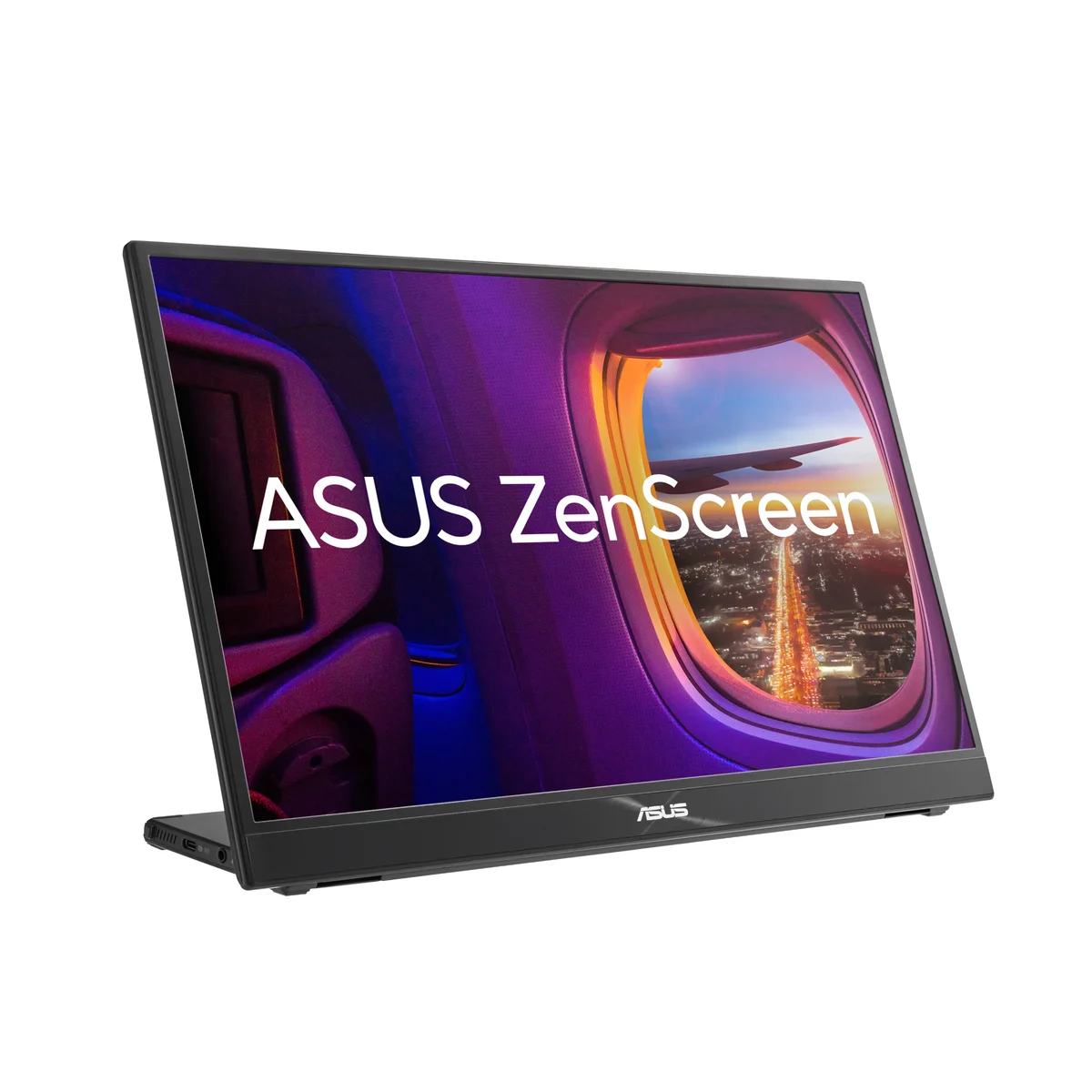
The exception is a small set of high-bandwidth setups. The ASUS ZenScreen Duo OLED MQ149CD specifies Thunderbolt 4 or USB4 to drive both of its OLED panels simultaneously from a single host cable, because basic DP Alt Mode does not have the lane budget for two FHD panels at once. If your laptop only has USB-C with DP Alt Mode and not Thunderbolt or USB4, dual-panel designs typically fall back to driving one screen or require a second USB-C cable to the second input.
Any port marked as Thunderbolt 3, Thunderbolt 4 or USB4 includes DP Alt Mode by specification requirement. That is why Thunderbolt branding on a laptop port is a safe signal that a portable monitor will work.
MacBook, Dell XPS and Surface Pro: what to expect
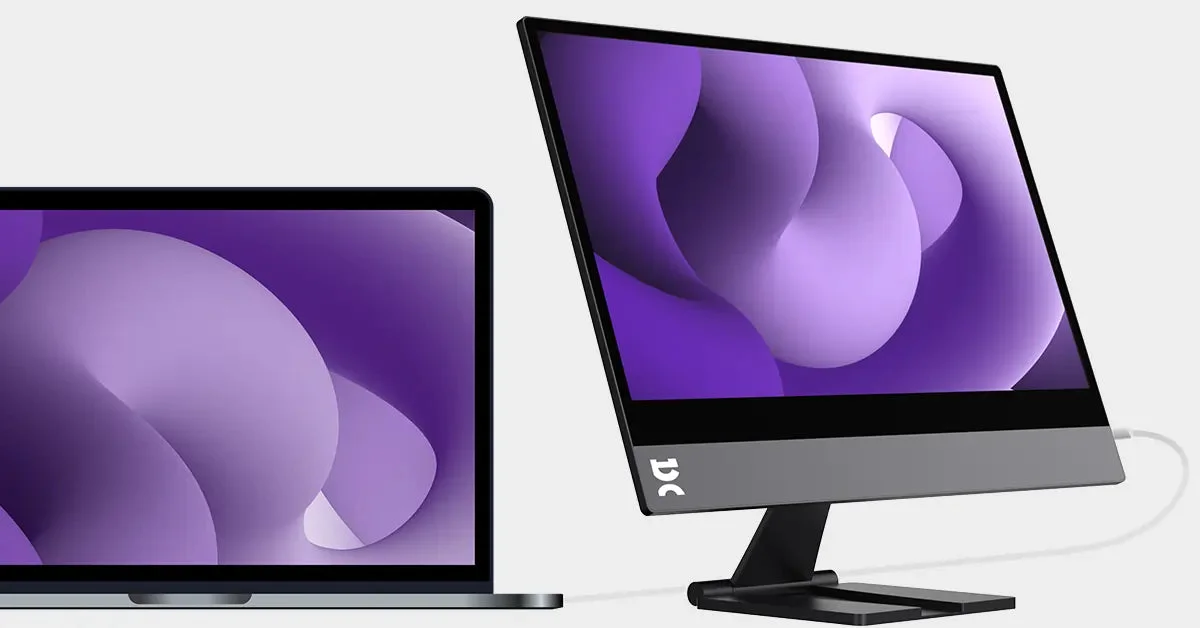
MacBook: every MacBook Air and MacBook Pro since late 2016 ships with Thunderbolt ports that include DP Alt Mode. The catch is how many external displays Apple Silicon allows. Plugable's guide to M1 and M2 Mac external displays confirms that the M1 and M2 MacBook Air are capped at exactly one external monitor through native video. A single portable monitor like the Espresso 15 Pro connects without extra software. A second external monitor on top of that requires a DisplayLink adapter.
Dell XPS: recent XPS 13 and XPS 15 laptops expose their USB-C ports as Thunderbolt 4, which means every port can drive video. Older XPS models with USB-A only need a different approach, which the HDMI adapter section covers.
Surface: Microsoft's community Q&A has threads from Surface Pro 9 owners reporting that specific portable monitors did not come up on the first try; these were usually resolved by switching the monitor's input source on its on-screen menu or swapping the cable. Any single USB-C portable monitor should work on Surface Pro 8 and later, which carry Thunderbolt 4. Older Surface models without Thunderbolt still need confirmation of DP Alt Mode in their published specs.
The cable can also be the problem
Even when both devices support DP Alt Mode, the cable has to as well. Espresso's own cable guide tells buyers directly that a USB-C cable designed only for phone charging will not carry video, and that users should either use the full-feature cable shipped with the monitor or buy one explicitly marked for video. Charge-only cables omit the high-speed data pairs that DP Alt Mode uses.
If the monitor backlight turns on but the screen stays black, and you have already confirmed the port supports Alt Mode, the cable is the next thing to swap. The most reliable move is to use the exact cable that came with the monitor. Espresso's compatibility page also notes that some older Windows laptops and tablets that advertise USB-C charging do not support DP Alt Mode at all, regardless of cable.
What to do if your laptop does not support DP Alt Mode
There are two workable routes. If the monitor has a Mini HDMI or HDMI input, which includes the ViewSonic VX1655-4K-OLED, the UPERFECT BE156NF, the Arzopa Z3FC and most ASUS ZenScreen models, then a powered HDMI adapter setup can carry video from any HDMI output on your laptop while a separate USB cable or wall charger supplies power. This also works when driving the monitor from a Nintendo Switch, a camera or an older laptop that has HDMI but no USB-C.
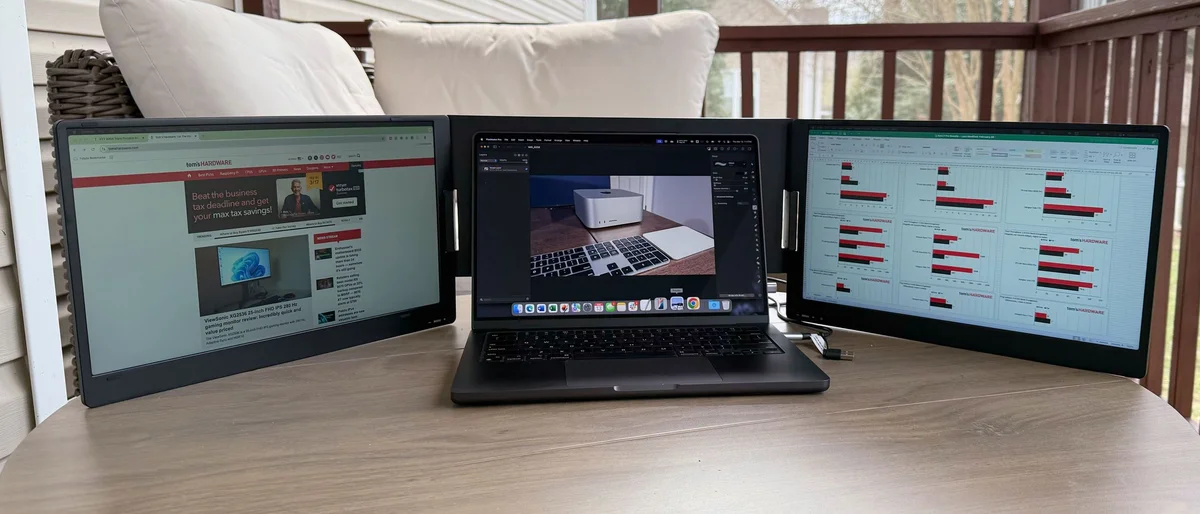
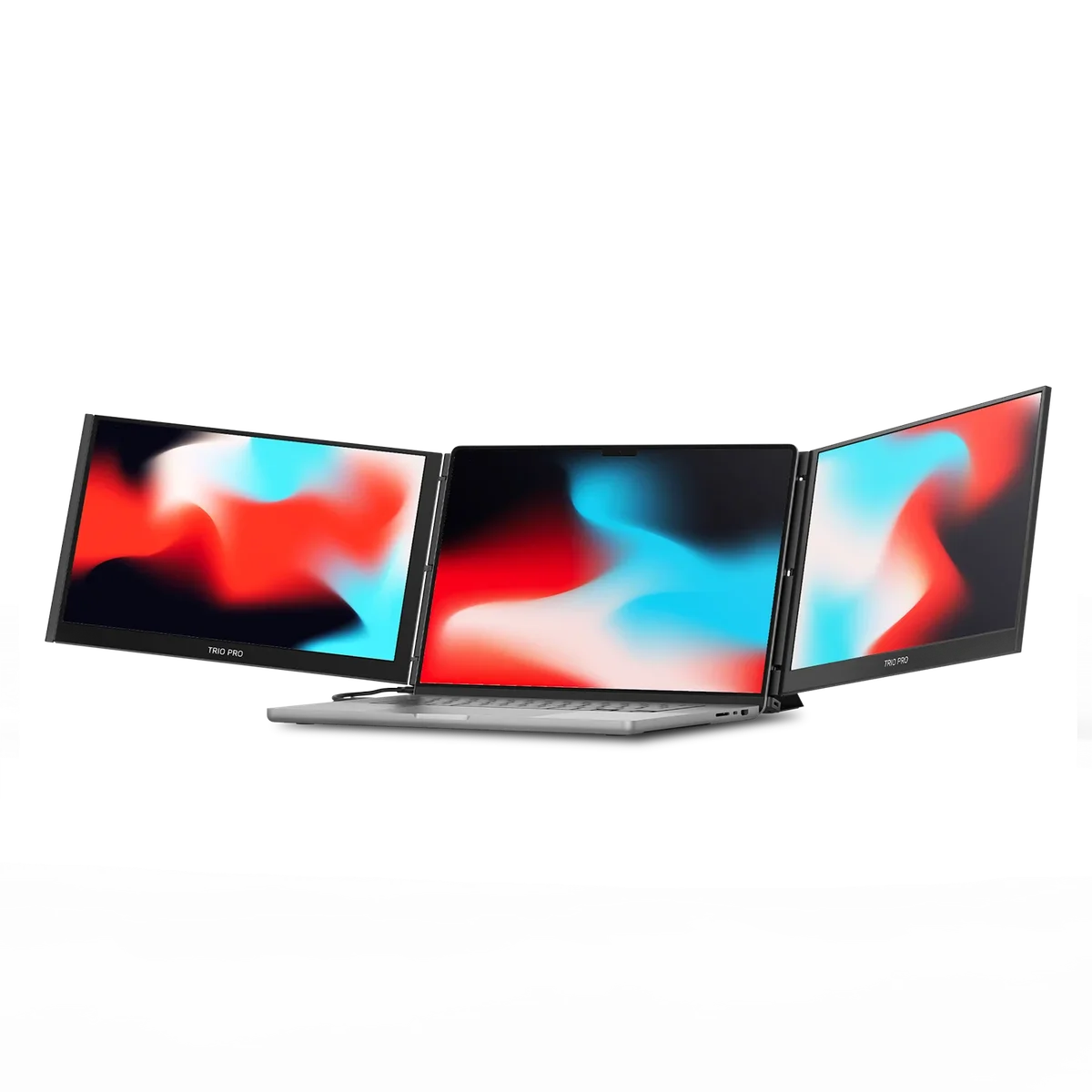
If the monitor is USB-C only, or the laptop has no video output of any kind, the fallback is a DisplayLink USB graphics adapter. DisplayLink sends compressed video over a regular USB 3 data connection and does not need Alt Mode on the host port. It works, but it adds CPU load, caps out around 4K 60 Hz on current chipsets, and is not a good fit for fast-paced games. Models like the KYY X90D dual screen and the Mobile Pixels Trio 3 Pro that attach directly to a laptop lid still need a host USB-C port with video, since their panels expect DP Alt Mode or Thunderbolt.
Power delivery is a separate compatibility question
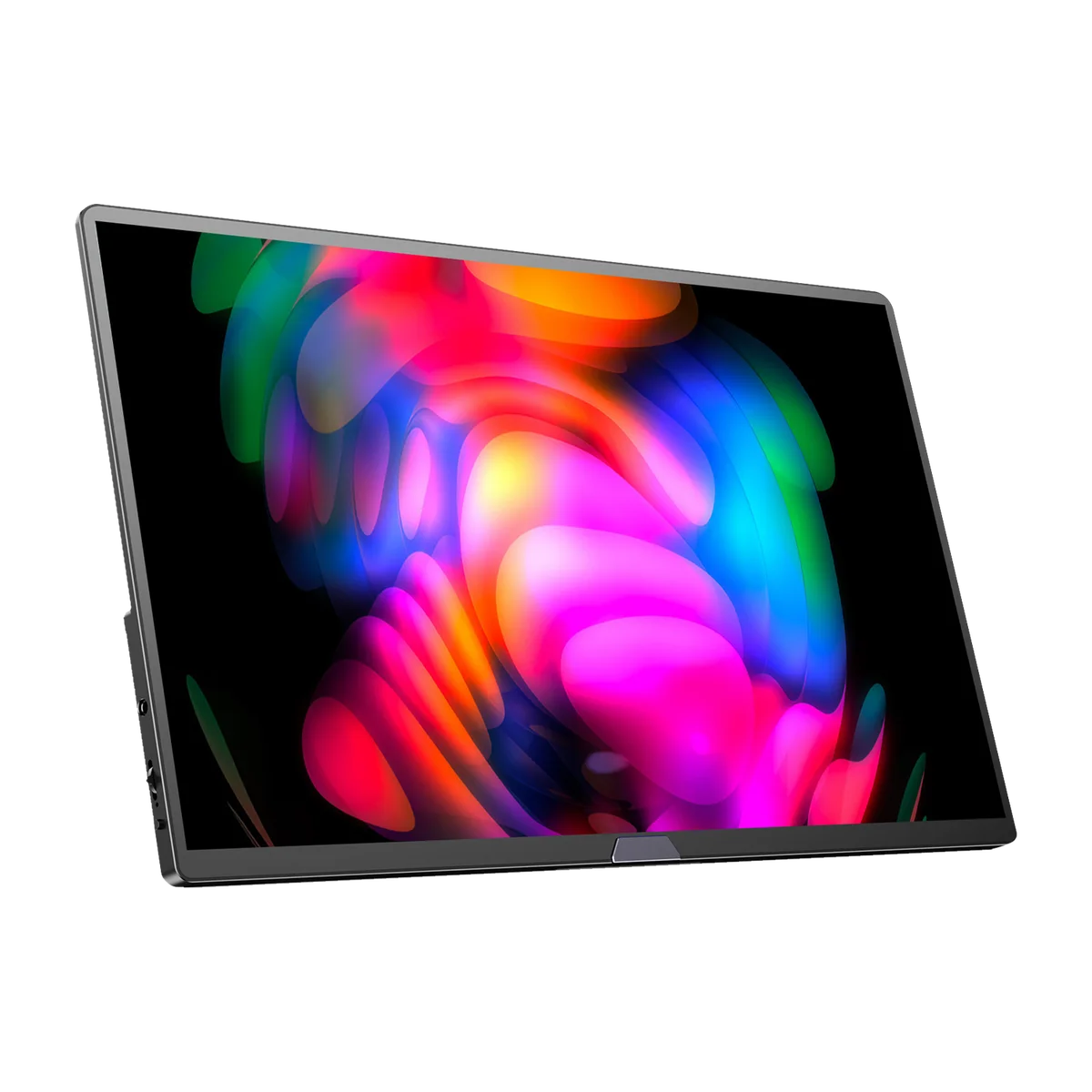
Even once video is working, there is a second question: how much power the setup moves, and in which direction. Most 13 to 16-inch laptops expect 60 to 65 watts to run under normal load. The Espresso 15 Pro and the Dell P1424H pass 65W through their USB-C ports, which is enough for most ultrabooks. The UPERFECT BE156NF advertises 90W passthrough, which covers a 15-inch MacBook Pro.
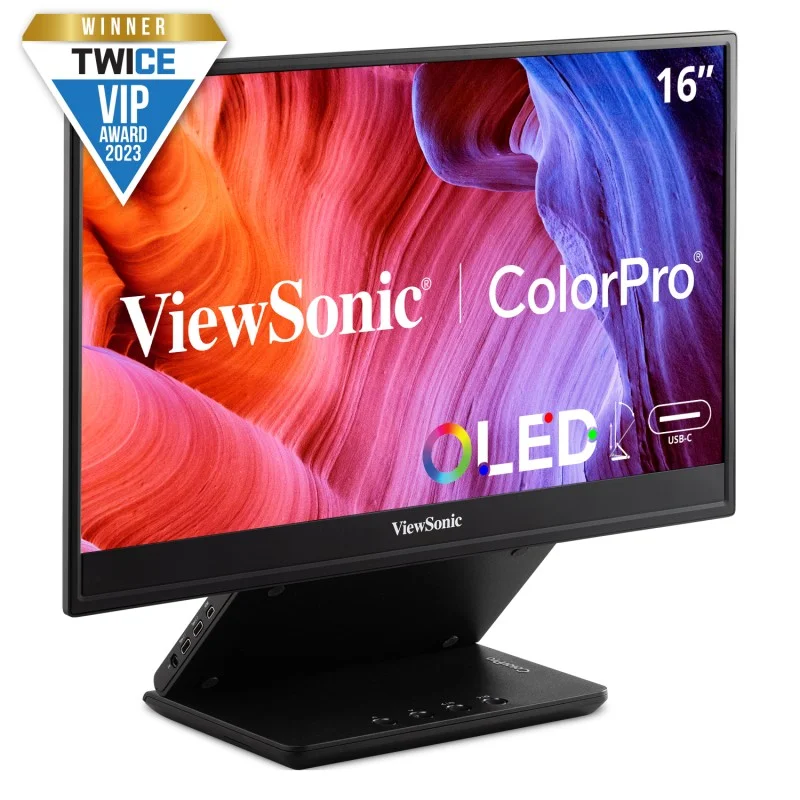
Lower-power monitors can drive video fine but will not keep a hungry laptop topped up. The ViewSonic ColorPro VP16-OLED only offers 40W per USB-C port, which is often not enough to run a 15-inch MacBook Pro at full load, and the KYY X90D dual screen accepts only 15W of USB-C input, meaning it almost always needs its own power source. None of this affects whether the picture shows up. It affects whether your laptop's battery is draining while you work.
| Monitor | USB-C power | Video mode |
|---|---|---|
| Espresso 15 Pro | 65W passthrough | USB-C DP Alt Mode |
| UPERFECT BE156NF | 90W passthrough | USB-C DP Alt Mode |
| ViewSonic VX1655-4K-OLED | 60W bidirectional | USB-C DP Alt Mode |
| Dell P1424H | 65W passthrough, dual port | USB-C DP 1.2 Alt Mode |
| ViewSonic ColorPro VP16-OLED | 40W per port | USB-C DP Alt Mode |
| ASUS ZenScreen Duo OLED MQ149CD | 65W | USB-C requires Thunderbolt 4 or USB4 for both panels |
| KYY X90D Dual Screen | 15W input only | USB-C DP Alt Mode, needs external power often |
The short version
In order of likelihood, these are the three things that break a USB-C portable monitor setup: the laptop port lacks DP Alt Mode, the cable is charge-only, or the monitor's input source is set wrong. Fix the first with the icon-and-spec-sheet check, the second by using the included cable or a marked video-capable one, and the third from the monitor's own on-screen menu. If your laptop genuinely has no DP Alt Mode port, a Mini HDMI input on the monitor plus a powered adapter is a cleaner fix than a DisplayLink dongle. Spend five minutes confirming your port before you order and you will save yourself the return.
See Best Portable Monitors of 2026Questions people ask
Why is my portable monitor not showing anything?+
The most common reason is that your laptop's USB-C port does not support DisplayPort Alt Mode. The port can still power the monitor, which is why you see the backlight turn on, but it cannot send a video signal. Check the port's icon on your laptop (a DisplayPort D-shape or Thunderbolt lightning bolt means video is supported) and read the exact spec sheet for your laptop model. Also confirm the monitor's own input source is set to USB-C rather than HDMI, and try the cable that shipped with the monitor rather than a random USB-C cable from a drawer.
Does any laptop with USB-C work with a portable monitor?+
No. USB-C describes a connector shape, not a feature set. A USB-C port might carry only charging, only data, or any combination of charging, data, and video. Only ports with DisplayPort Alt Mode, Thunderbolt 3, Thunderbolt 4, or USB4 can send video to a portable monitor over a single USB-C cable. If your laptop's USB-C port is marked only with a battery icon, or if the spec sheet says nothing about DP Alt Mode or Thunderbolt, assume no video until proven otherwise.
What is DisplayPort Alt Mode and do I need it?+
DisplayPort Alt Mode is a USB-C specification that reroutes some of the connector's high-speed lanes to carry a DisplayPort video signal. For nearly every USB-C portable monitor on the market, including every model in the ranking, you need DP Alt Mode on your laptop's port to see a picture over a single USB-C cable. The only exception is if your monitor has an HDMI input and you plan to drive it from HDMI instead, in which case DP Alt Mode is not needed.
My USB-C cable charges my laptop but the monitor stays black, why?+
Two usual causes. First, the cable might be charge-only, missing the high-speed data pairs that DP Alt Mode uses. Swap to the cable that came with the monitor or a cable explicitly marked for video. Second, the port may support charging but not video. The two capabilities are independent. Espresso and ViewSonic both document this in their support pages, and it is the top support ticket for most portable monitor brands.
Do I need Thunderbolt 3 or 4 for a portable monitor?+
For a single portable monitor, no. DisplayPort Alt Mode over USB-C is enough, including for 4K 60 Hz models like the Espresso 15 Pro and the ViewSonic VX1655-4K-OLED. You do need Thunderbolt 4 or USB4 for a few dual-panel designs like the ASUS ZenScreen Duo OLED MQ149CD, which needs the extra bandwidth to drive both OLED panels at once from one cable. Thunderbolt is a safe signal that a port will work, but it is not a requirement for most buyers.
How do I check if my laptop USB-C port supports video output?+
Look for a DisplayPort D-shape icon, a DP label, or a Thunderbolt lightning bolt printed next to the USB-C port on the laptop chassis. If the icon is a battery, the port is charging only. If there is no icon, check the laptop spec sheet on the manufacturer's website for the phrases DisplayPort Alt Mode, DisplayPort over USB-C, Thunderbolt, or USB4. You can also plug the monitor in and open Display settings in Windows or System Settings in macOS and see if a second display is listed.
Will a portable monitor work with my MacBook, Dell XPS, or Surface?+
MacBook: every MacBook Air and MacBook Pro since late 2016 supports DP Alt Mode. M1 and M2 MacBook Air are capped at one external display over native video, per Plugable's guide. Dell XPS 13 and XPS 15 laptops that expose Thunderbolt 4 over USB-C will drive any single portable monitor. Surface Pro 8 and later ship with Thunderbolt 4 USB-C, so any single USB-C portable monitor should work; older Surface models without Thunderbolt need confirmation of DP Alt Mode in their published specs.
Can I use a portable monitor with a laptop that has no USB-C at all?+
Yes, if the monitor has an HDMI input. Many monitors including the ViewSonic VX1655-4K-OLED, the UPERFECT BE156NF, the Arzopa Z3FC and most ASUS ZenScreen models offer a Mini HDMI input in addition to USB-C. You can run HDMI from the laptop for video and a separate USB-A cable or wall plug for power. If the monitor is USB-C only, the alternative is a DisplayLink USB graphics adapter, which sends compressed video over a standard USB data connection and does not need DP Alt Mode on the host.
Sources
What this guide is based on. We research from published specifications, independent reviews and owner reports; we did not test these products ourselves.
- 1.Does Your USB-C Port Support Video? The USB-C Port Decoder, Plugable
- 2.Understanding USB-C Alt Mode, Plugable Knowledge Base
- 3.How Many External Monitors Can I Add to My M1 or M2 Mac?, Plugable
- 4.USB-C DisplayPort (DP Alt Mode) and Why it Matters, BenQ
- 5.How to Tell If Your USB-C Port Supports DisplayPort Alt Mode, KTC
- 6.Portable Monitor No Signal? Fix USB-C, HDMI, and Power Issues, Arzopa
- 7.ViewSonic Portable Monitor Troubleshooting, ViewSonic
- 8.ViewSonic VX1655-4K-OLED Datasheet, ViewSonic
- 9.espresso Display Compatibility Check, Espresso
- 10.Using the correct USB-C Cable, Espresso Support
- 11.Powered HDMI Adapter for Portable Monitors: The Fix for Laptops Without DP Alt Mode, Evezone
- 12.Surface Pro 9 not compatible with portable monitor, Microsoft Q&A
Products mentioned
 Arzopa Z3FC 16.1 Inch 2.5K 180Hz Portable Gaming Monitor
 ASUS ZenScreen Duo OLED MQ149CD Foldable Portable Monitor
 Dell P1424H 14 Inch FHD Portable MonitorDell P1424H 14 Inch FHD USB-C Portable Monitor
 Espresso 15 Pro 15.6 Inch 4K Touch Portable Monitor
 KYY X90D 15.6 Inch Dual Screen Portable Monitor
 Lenovo ThinkVision M14t Gen 2 14 Inch Touch Portable Monitor
 Mobile Pixels Trio 3 Pro 14.1 Inch QHD Portable Monitor
 UPERFECT BE156NF 15.6 Inch 4K OLED Portable Business Monitor
 ViewSonic ColorPro VP16-OLED 15.6 Inch OLED Portable Monitor
 ViewSonic VX1655-4K-OLED 15.6 Inch 4K OLED Portable Monitor
More on portable monitors
Explainer
What DCI-P3, Adobe RGB, and sRGB Actually Mean on a Portable Monitor Spec Sheet
A plain-English decoder for the color gamut percentages on portable monitor boxes: what each standard describes, why over-100% figures mislead, and which number to trust for photo, video, or office work.
Explainer
OLED Burn-In on Portable Monitors: What the Real Risk Is
What long-term tests and reviewers actually report about OLED burn-in on portable monitors, when to worry, when to shrug, and when IPS is the calmer buy.
Buying guide
How to Choose a Portable Monitor
Picking a portable monitor breaks down to five trade-offs: port compatibility, size, resolution, panel type, and power delivery. Here is how to work through them with real models.