Buying guide
How to Choose a Portable Monitor
Picking a portable monitor breaks down to five trade-offs: port compatibility, size, resolution, panel type, and power delivery. Here is how to work through them with real models.
Updated November 11, 2026 · Based on 17 sources · How we research
Portable monitors are one of the few laptop accessories where the spec sheet misleads buyers more than it helps. A 4K OLED panel is useless if your laptop's USB-C port does not carry video. A 650g 14 inch screen is miserable if you need to proof wide gamut photos. The decisions that separate the right pick from the wrong one are not raw numbers but five practical trade-offs: port compatibility, the screen size you can actually carry every day, whether 4K earns its price at 15 inches, whether OLED is worth its drawbacks for your workload, and how much power the monitor passes back to keep your laptop charged. This guide walks each one, using the models from the RankGrids Best Portable Monitors of 2026 ranking as examples.
The specs that matter sit on your laptop, not the monitor
Before you shortlist a panel, confirm your laptop's USB-C port supports DisplayPort Alternate Mode. USB-C is a shape, not a capability: a port must carry DP Alt Mode to send a picture to a portable monitor, and not every USB-C port does. Thunderbolt 3 and Thunderbolt 4 ports always carry DP Alt Mode, so a Thunderbolt laptop is safe by default, as KTC's compatibility guide explains. Plain USB-C 3.1 or 3.2 ports may or may not, depending on the laptop maker's wiring choice. The quickest check is to search your laptop's spec sheet for the phrase "DisplayPort over USB-C" or "DP Alt Mode." If you cannot find it, confirm with the manufacturer before buying, or plan to use a Mini-HDMI input instead, which most monitors in the ranking still include as a fallback.
A second, quieter catch is power direction. Every portable monitor lists a USB-C power rating, but what it means depends on whether the monitor can only receive power from your laptop or can also pass power back the other way. The former drains your battery while in use; the latter lets you plug a wall charger into the monitor and keep your laptop topped up. That distinction gets its own section below.
What size portable monitor do you need?
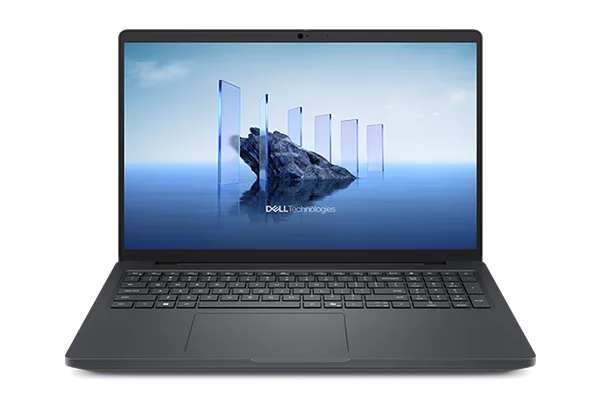
Size is a function of your bag, not your taste. A 14 inch monitor is the easiest to live with daily: the Dell P1424H weighs 590 grams and the Lenovo ThinkVision M14t Gen 2 weighs 700 grams, both small enough to disappear next to a laptop in a backpack. Travel-focused buying guides from Mobile Pixels point to the 13 to 15 inch band as the sweet spot for commuters and frequent flyers.
15.6 inches is where most buyers land, and most of the ranking sits here for a reason. The screen matches the deck of most laptops, the weight stays around 680 to 800 grams for better models like the ViewSonic VX1655-4K-OLED at 680 grams or the KYY K5 at 770 grams, and prices span $200 to $700 depending on panel.
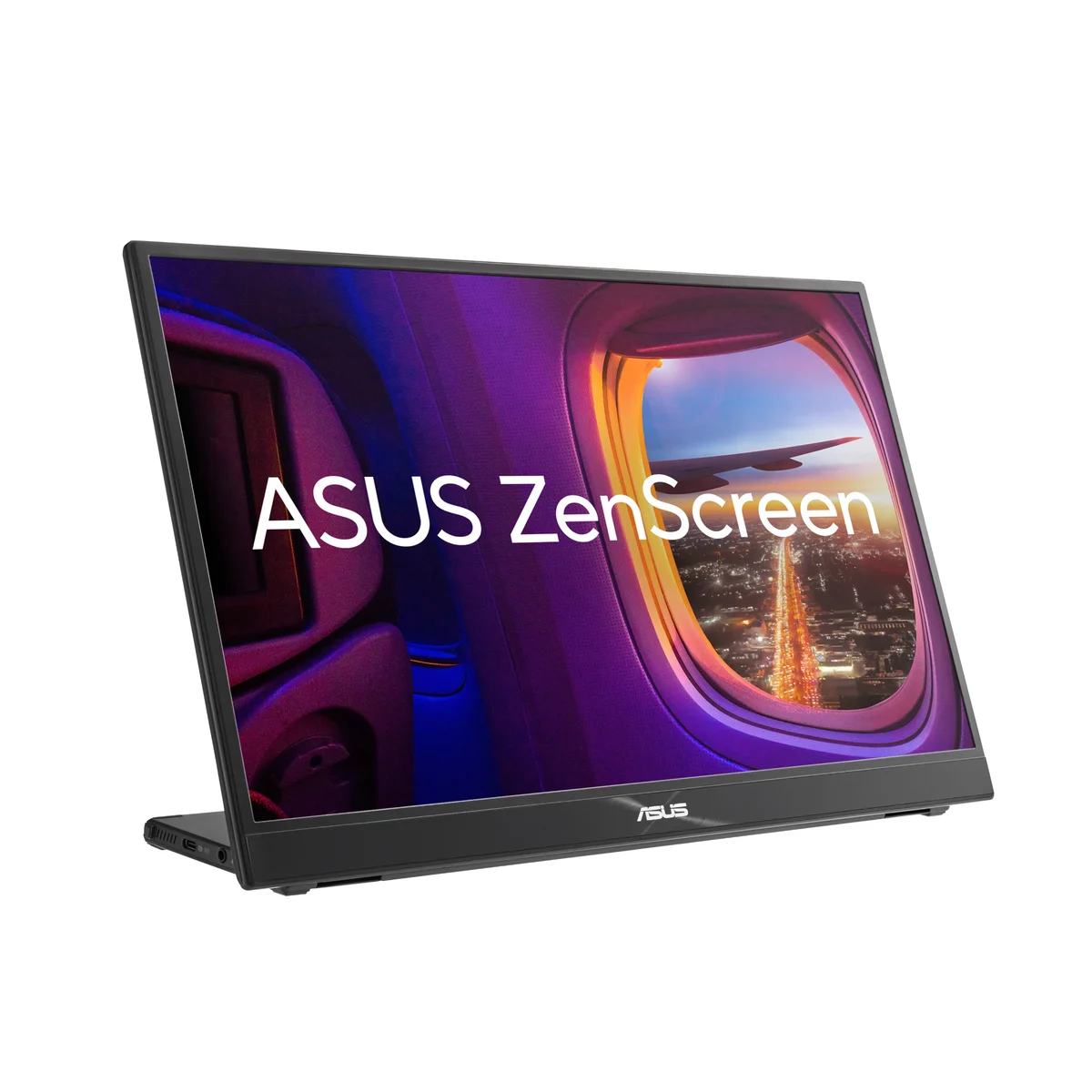
16 to 17.3 inches gives real second screen space but costs weight and bag volume. The NexiGo NG17QH is a 17.3 inch 4K panel but weighs 1.27 kg. Dual-panel foldables like the ASUS ZenScreen Duo OLED MQ149CD collapse to a 14 inch footprint but still hit 1.1 kg. If the monitor stays at a hotel desk for the day, that trade is fine. If you commute with it, it starts to feel like a second laptop.
Do you need 4K on a 15 inch portable monitor?
A 15.6 inch 4K panel runs around 282 pixels per inch; the same size at 1080p runs around 141 ppi. On paper that is a fourfold density increase, but at a typical viewing distance the gap narrows. PCWorld's portable monitor guide argues that 1080p or 1440p is enough for most laptop-side second-screen uses, and that 4K is wasted on spreadsheets, web, and video calls at this size.
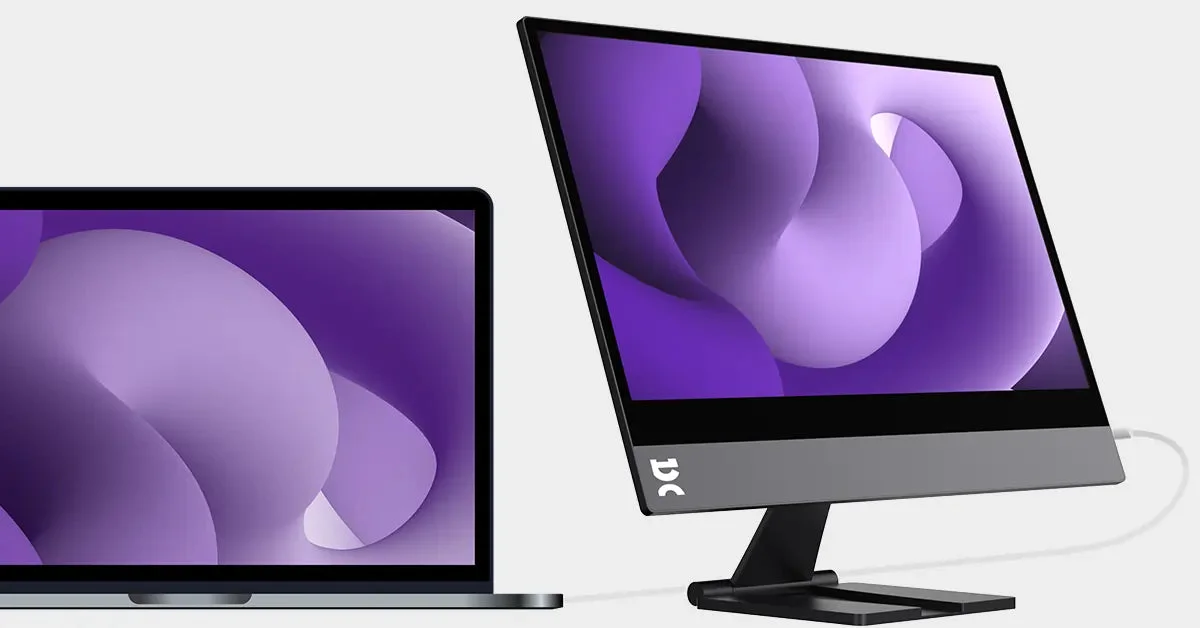
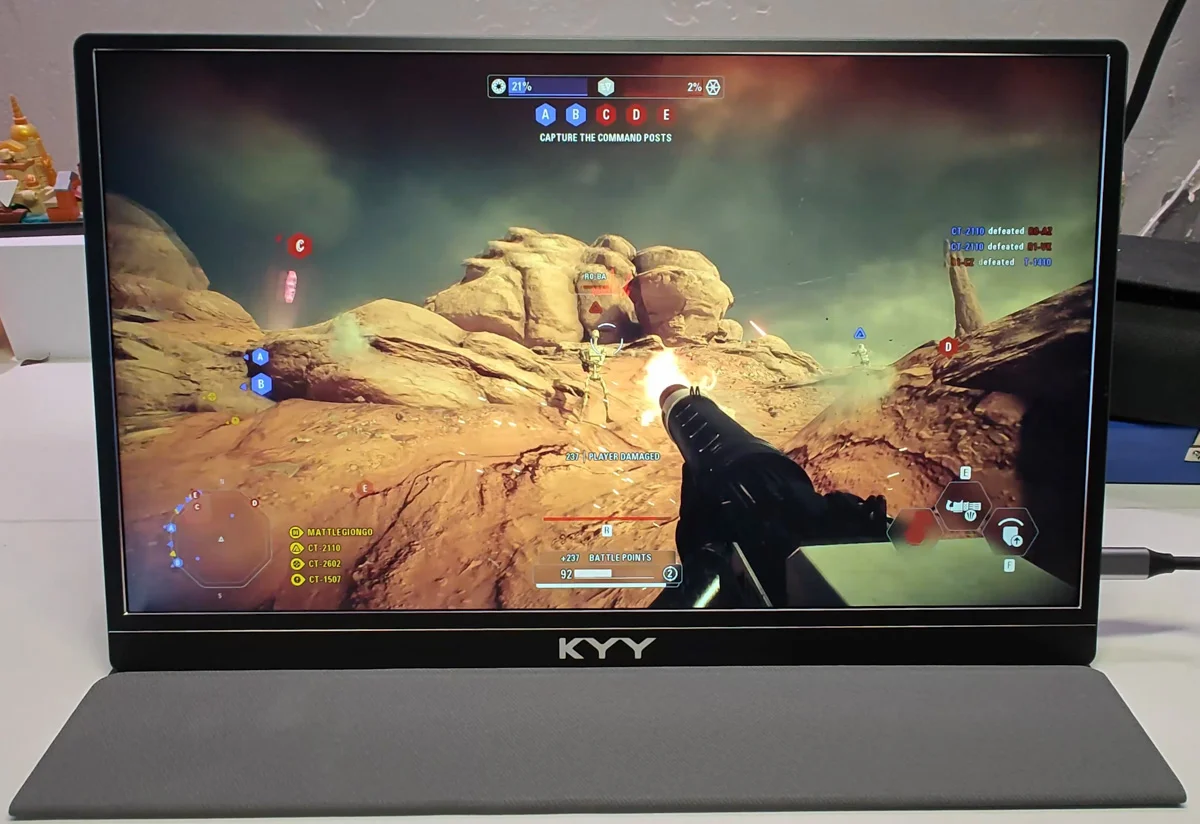
Three workloads justify 4K at this size. First, photo and video review, where seeing each pixel changes decisions. Second, coding at small font sizes, where crisper glyphs matter. Third, macOS users, whose integer scaling looks visibly cleaner at 4K than at awkward native resolutions. For those readers the Espresso 15 Pro at 550 nits with 100 percent Adobe RGB, or the lower cost KYY K5 at the same resolution and gamut for $290, both earn the upgrade. Engadget's review and PetaPixel's both back the Espresso as a credible second display for creative work next to a MacBook Pro's Retina panel.
The hidden cost of 4K is power draw. A 4K panel pulls meaningfully more watts from the laptop than a 1080p one, which is why the better 4K monitors ship with a second USB-C port for an external charger.
Is OLED worth the extra cost over IPS on a portable monitor?
OLED beats IPS on a portable monitor in three specific ways. Contrast is effectively infinite because each pixel emits its own light and can switch off entirely. Response time drops to or below 1 millisecond. And factory color accuracy at this price tier typically clears Delta E below 2. Tom's Hardware reports the ASUS ZenScreen Duo OLED MQ149CD delivers 100 percent DCI-P3 with Delta E under 2, and PCWorld's review of the ViewSonic VX1655-4K-OLED highlights deep blacks and saturated color rarely seen in a portable panel. If your output is photo, video, or color critical review, OLED's advantages are real.
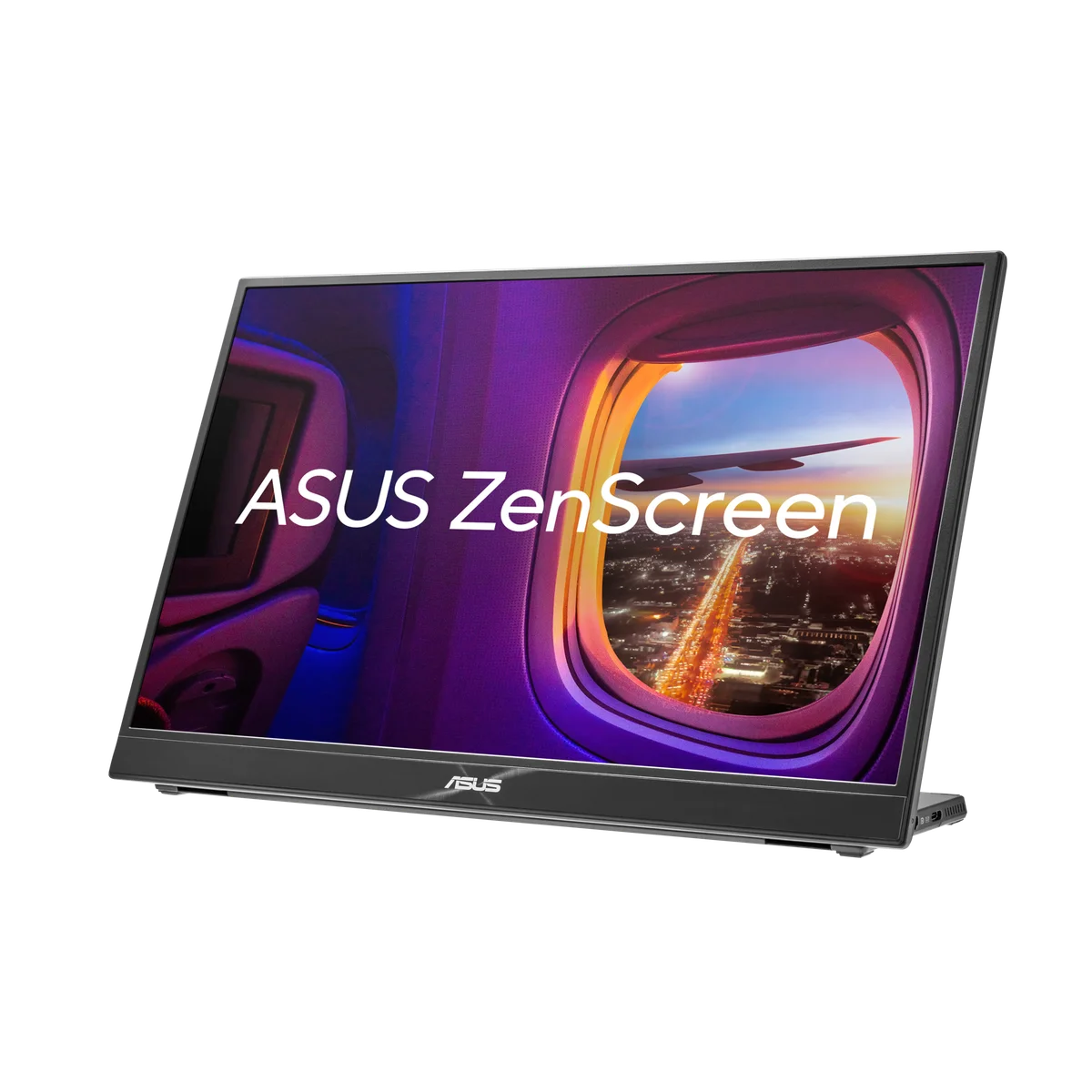
OLED loses to IPS in two ways that matter for everyday use. Sustained full-screen brightness tops out around 400 nits on most portable OLEDs, against 500 nits or more on better IPS panels like the ASUS ZenScreen MB16QHG. In a bright room with sunlight on the panel, that gap matters. There is also a long-tail burn-in risk with static content. PC Gamer's 21-month OLED burn-in tracker finds degradation that slows after six months but remains measurable past 5,000 hours, and its two-year followup documents noticeable burn-in after 6,000 hours of heavy use. Tom's Hardware's own 2,656-hour report describes no visible burn-in and argues the risk is overstated for mixed use.
Reading those three sources together: for a monitor open eight hours a day with the same toolbar and taskbar on screen, pick IPS. For varied content, intermittent use, or creative review work, OLED is fine. On price, the ViewSonic VX1655-4K-OLED at $500 sits against the IPS ViewSonic VX1655-4K at $440: same brand, same size, OLED winning on contrast and the IPS winning on sustained brightness and price.
Will the monitor keep your laptop charged, or drain it?
Power passthrough is where spec sheets lose most buyers. A portable monitor's USB-C power rating only tells half the story: what matters is whether that port can also pass power backward to your laptop. ASUS explains the mechanic clearly: with a true passthrough setup, you plug a wall charger into one USB-C port on the monitor, connect the second USB-C port to your laptop with a single cable, and the monitor delivers video down that cable while sending charging power back up it.
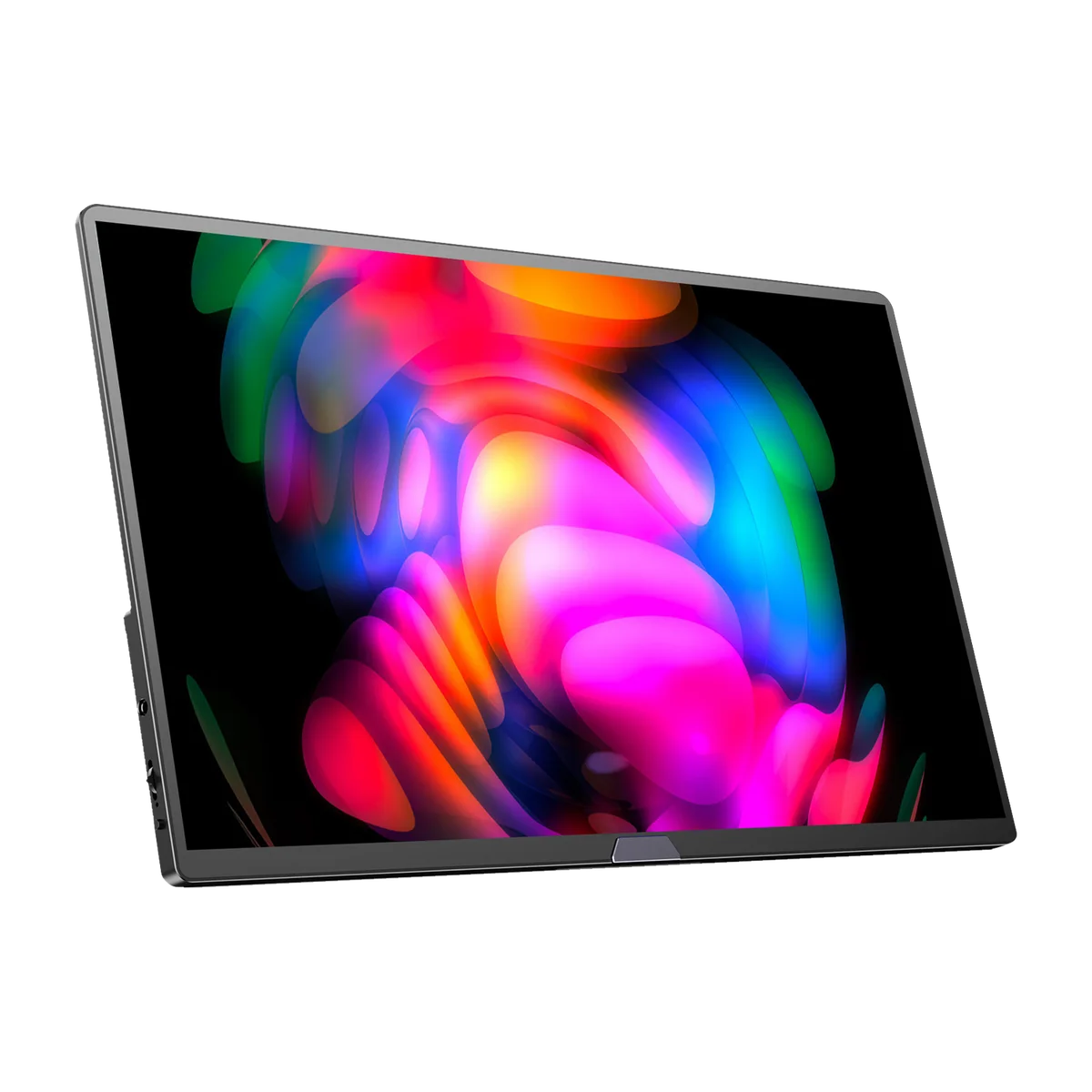
65W passthrough is the baseline for mainstream ultrabooks (MacBook Air, Dell XPS 13, ThinkPad T-series), and the Dell P1424H, Lenovo ThinkVision M14t Gen 2, and most others in the ranking support it. For creator laptops or machines with a discrete GPU, the UPERFECT BE156NF at 90W passthrough is the strongest option in the ranking. Below 65W, the monitor is largely a draw on your laptop battery: the ViewSonic VP16-OLED's 40W rating is enough to run the panel but not to hold a MacBook Pro's charge under load.
A quieter trap: some monitors list Power Delivery on the port used for the wall charger and not on the port that connects to your laptop. If both ports are full-featured, cable routing is flexible. If only one is, you will fight the cable every day. The Dell P1424H and Lenovo ThinkVision M14t Gen 2 specifically document 65W PD on both ports, which is the detail to look for.
What is the difference between a portable monitor for work and one for gaming?
Three specs separate these use cases: refresh rate, color coverage, and touch or stylus support. A productivity monitor typically runs 60Hz, covers 100 percent sRGB (roughly 72 percent NTSC, the same gamut stated differently), and prioritizes weight and a good matte coating. The Dell P1424H and Lenovo ThinkVision M16 both hit that profile under $300.
A color critical creative monitor adds wide gamut coverage: 100 percent DCI-P3 or 100 percent Adobe RGB, Delta E below 2, and factory calibration. Third-party certification like Pantone Validated is a reliable tell. The ViewSonic ColorPro VP16-OLED carries Pantone Validation and 100 percent DCI-P3 at $299, and the KYY K5 matches it with 100 percent Adobe RGB at $290. If you touch Lightroom or DaVinci Resolve, this tier is the floor, not the ceiling. Mobile Pixels' color space primer sets out which gamut matches which workflow.
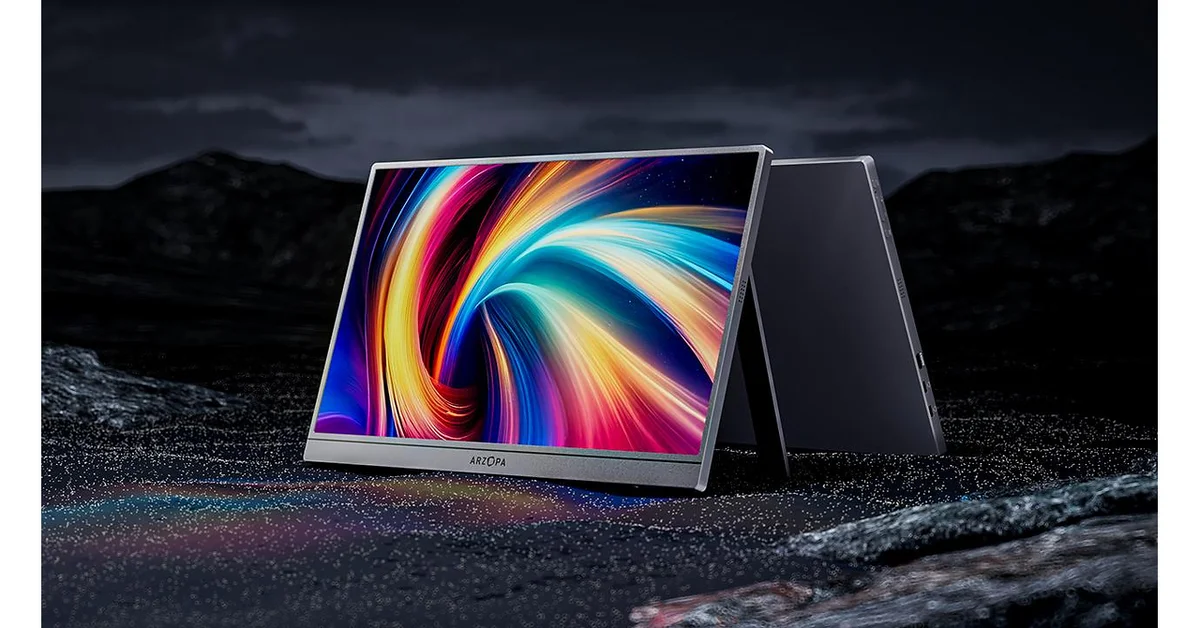
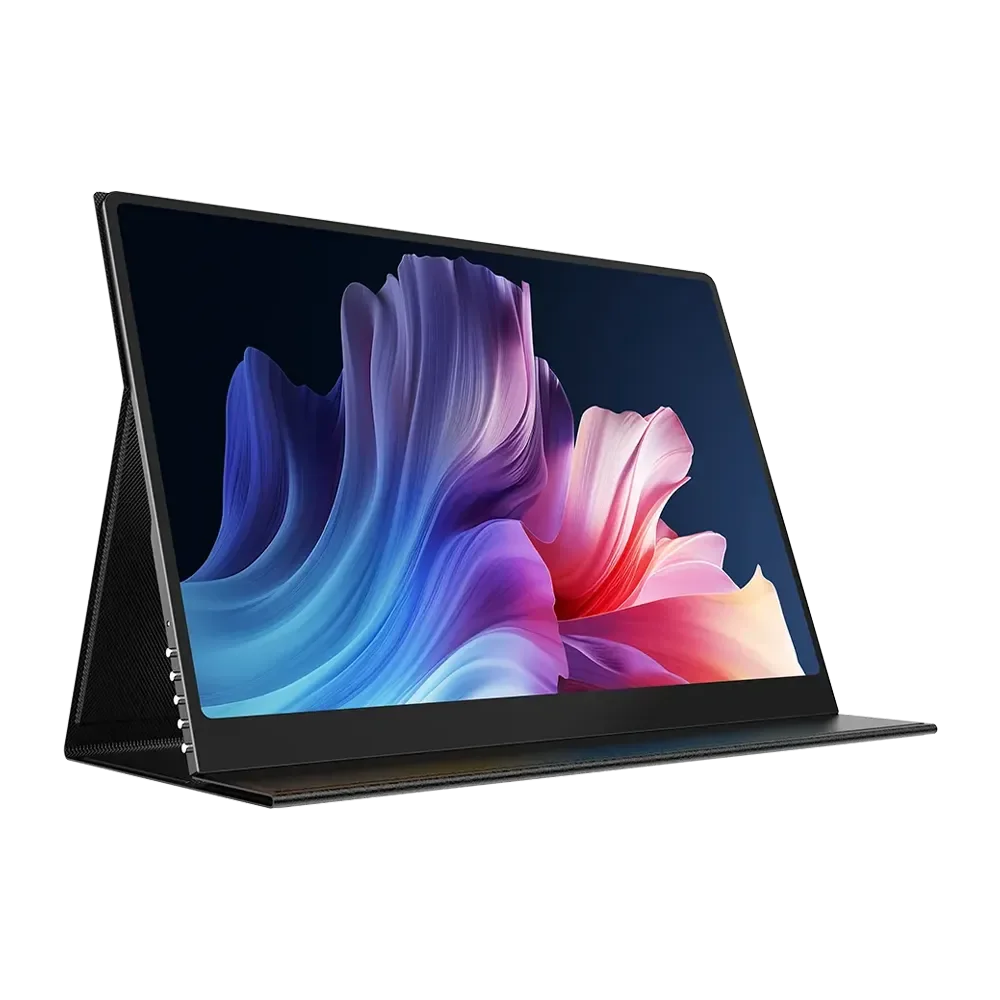
A gaming portable monitor prioritizes refresh rate (120Hz minimum, 144 to 180Hz common now), response time under 5 ms, and adaptive sync. The Arzopa Z3FC runs 2.5K at 180Hz for $199, which PCWorld's review calls notable for motion clarity at the price. The trade-off at that price: the Z3FC covers 78 percent DCI-P3 as measured by independent reviewers, enough for games but not for color review work. The UPERFECT GR16HQ at $499 removes that compromise, pairing 3K OLED at 120Hz with 100 percent DCI-P3.
How much should you spend on a portable monitor?
Three tiers exist in the current market. Under $300 buys a workable 14 to 16 inch 1080p IPS panel with 65W passthrough: the Dell P1424H at $290, Lenovo ThinkVision M16 at $249, or ASUS ZenScreen MB16AHG at $227 are the safe choices. Expect 300 nits, 100 percent sRGB, and a basic kickstand. The KYY K5 at $290 is the exception at this tier: it pairs 4K and 100 percent Adobe RGB for the same money as a basic 1080p panel.
$300 to $500 is where the market does its best work. For $349 the ASUS ZenScreen MB16QHG delivers 100 percent DCI-P3 at 120Hz with 500 nits. For $499 the ASUS ZenScreen Duo OLED MQ149CD gives you dual OLED panels that fold flat for travel. For $500 the ViewSonic VX1655-4K-OLED gives you an HDR-certified 4K OLED at 680 grams with 60W passthrough. Most readers belong in this tier.
Above $500 you are buying a reference grade creative panel. The Espresso 15 Pro at $699 adds a 550-nit 4K touch panel with stylus support; the UPERFECT BE156NF at $620 adds 90W passthrough and 110.9 percent DCI-P3. These justify their cost only when the monitor shapes the output your work is judged on.
| Budget | Panel type | Example from our ranking | Best for |
|---|---|---|---|
| Under $300 | 1080p IPS, 65W passthrough | Dell P1424H ($290), Lenovo ThinkVision M16 ($249), ASUS MB16AHG ($227) | Travel second screen, productivity |
| $300 to $500 | Wide-gamut IPS, 4K OLED, or dual-screen | ASUS MB16QHG ($349), ASUS MQ149CD ($499), ViewSonic VX1655-4K-OLED ($500) | Mixed productivity and light creative |
| $500 and up | Flagship 4K touch or 90W OLED | Espresso 15 Pro ($699), UPERFECT BE156NF ($620) | Photo, video, and stylus-driven review |
Is a portable monitor actually worth buying?
Yes if you work in more than one location at least twice a week, or travel for work at least monthly. Mobile Pixels' value analysis argues that a mid-range portable monitor used several days a week pays for itself in recovered productivity within a quarter. The second screen matters more than the second screen's resolution. Most gains come from the extra pixels for a chat window, a reference document, or a video call, not from HDR brightness.
No if you work from a fixed desk with a permanent second monitor already there, and your laptop lives in a dock. A portable monitor is a travel tool, not a general display upgrade. If you never unplug, the $400 is better spent on a stationary 27 inch 4K panel. The honest question to ask: how many days a month would it have saved you in the last quarter?
The short version
Buy the port compatibility first, the size second, and the panel third. For most readers a 14 to 15.6 inch IPS panel with 65W passthrough in the $227 to $349 range is the right answer: the Dell P1424H, KYY K5, or ASUS ZenScreen MB16QHG depending on whether you prioritize weight, resolution, or color. If you edit photo or video on the road, step up to the Espresso 15 Pro or the ViewSonic VX1655-4K-OLED. If you game on the road, the Arzopa Z3FC or UPERFECT GR16HQ earn their refresh rate. If none of those match your use case, you probably do not need a portable monitor at all.
See Best Portable Monitors of 2026Questions people ask
What should I look for when buying a portable monitor?+
In priority order: (1) your laptop's USB-C port supports DisplayPort Alt Mode, (2) the monitor's power delivery matches what your laptop draws, (3) a size and weight you will actually carry daily, (4) panel type that fits your workload, (5) color coverage if visual output is the point. Everything else is secondary.
What size portable monitor do I need?+
14 inches if you commute with it daily. 15.6 inches is the all-around sweet spot and where most buyers should land. 16 to 17.3 inches if the monitor stays at a hotel desk and you want real second-screen space. Below 14 feels cramped; above 17 competes with laptop bag volume.
Is a portable monitor worth buying?+
Yes if you work in more than one location regularly or travel for work. The productivity gain from a second screen compounds with mileage. No if your main workspace already has a permanent second monitor and your laptop rarely leaves the dock.
Do I need 4K on a 15 inch portable monitor?+
Only for photo and video review, small-font coding, or macOS integer scaling. At normal desk viewing distance, 1080p or 1440p is sharp enough on a 15.6 inch panel for most work. 4K also draws more watts, so plan on 65W passthrough if you want it.
Is OLED worth the extra cost over IPS on a portable monitor?+
For color-critical creative work or HDR video review, yes. The infinite contrast and sub-1 ms response time are real. For eight-hour-a-day static document work, no: pick IPS to avoid long-tail burn-in risk and keep higher sustained brightness.
How much should I spend on a portable monitor?+
Under $300 for a solid 1080p productivity monitor, $300 to $500 for a sweet-spot panel with wide gamut or OLED, above $500 for flagship creative with touch or 90W passthrough. Most buyers should land in the middle tier.
What is the difference between a portable monitor for work and one for gaming?+
Work monitors run 60Hz with 100 percent sRGB and prioritize low weight and a good kickstand. Gaming monitors run 120Hz or higher with sub-5 ms response and often add FreeSync, at the cost of narrower color gamut and heavier builds. The Arzopa Z3FC at 180Hz is a representative gaming pick; the Dell P1424H at 60Hz is a representative work pick.
Will a portable monitor work with my laptop?+
Only if your laptop's USB-C port supports DisplayPort Alt Mode. Thunderbolt 3 and 4 ports always do. Plain USB-C ports may not. Check your laptop's spec sheet for "DisplayPort over USB-C." If your port only handles data and charging, look for monitors with a Mini-HDMI input as a fallback.
Sources
What this guide is based on. We research from published specifications, independent reviews and owner reports; we did not test these products ourselves.
- 1.Best Portable Monitors 2026: Gaming and Laptop Productivity, Tom's Hardware
- 2.Best portable monitors 2026: Displays that go with you, PCWorld
- 3.Espresso 15 Pro review: Just a really nice (though pricey) portable monitor, Engadget
- 4.Espresso Displays 15 Pro Review: Brighter, Lighter, Better, PetaPixel
- 5.Asus ZenScreen Duo OLED (MQ149CD) Review, Tom's Hardware
- 6.ViewSonic VX1655-4K-OLED portable monitor review, Tom's Hardware
- 7.Viewsonic VX1655-4K-OLED review, PCWorld
- 8.Lenovo ThinkVision M14t Gen2 Monitor Review, RTINGS
- 9.Arzopa Z3FC review: A portable monitor with a 180Hz refresh rate, PCWorld
- 10.21 months and 5,000 hours in, this long-term OLED monitor burn-in test finds that panel degradation slows after six months, PC Gamer
- 11.After two years and over 6,000 hours, Monitors Unboxed's long-term OLED gaming monitor test shows increasing burn-in, PC Gamer
- 12.I've been using an OLED monitor for 2,656 hours, and I'm not scared of burn-in, Tom's Hardware
- 13.Adobe RGB vs DCI-P3 vs sRGB, Mobile Pixels
- 14.USB-C 3.1, 3.2, and Thunderbolt for Portable Monitors, KTC
- 15.Power passthrough on portable monitors, ASUS Edge Up
- 16.Are Portable Monitors Actually Worth Buying?, Mobile Pixels
- 17.How do I choose a portable monitor for frequent travel?, Mobile Pixels
Products mentioned
 Arzopa Z3FC 16.1 Inch 2.5K 180Hz Portable Gaming Monitor
 ASUS ZenScreen Duo OLED MQ149CD Foldable Portable Monitor
 ASUS ZenScreen MB16AHG 15.6 Inch 144Hz Portable Monitor
 ASUS ZenScreen MB16QHG 16 Inch 120Hz QHD Portable Monitor
 Dell P1424H 14 Inch FHD Portable Monitor
 Espresso 15 Pro 15.6 Inch 4K Touch Portable Monitor
 KYY K5 15.6 Inch 4K Portable Monitor
 Lenovo ThinkVision M14t Gen 2 14 Inch Touch Portable Monitor
 UPERFECT BE156NF 15.6 Inch 4K OLED Portable Business Monitor
 UPERFECT GR16HQ 16 Inch 3K 120Hz OLED Portable Gaming Monitor
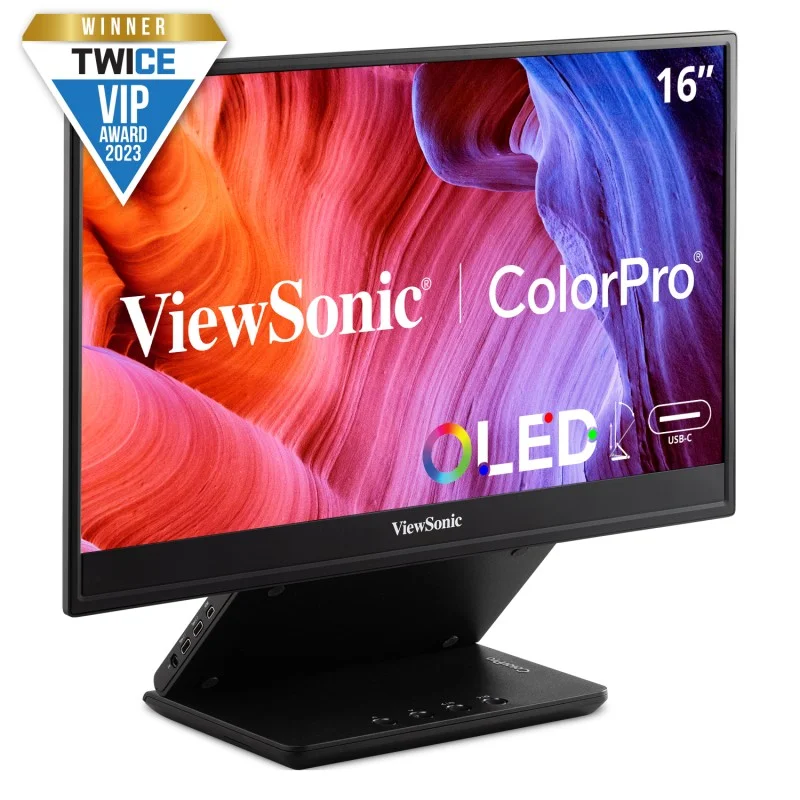 ViewSonic ColorPro VP16-OLED 15.6 Inch OLED Portable Monitor
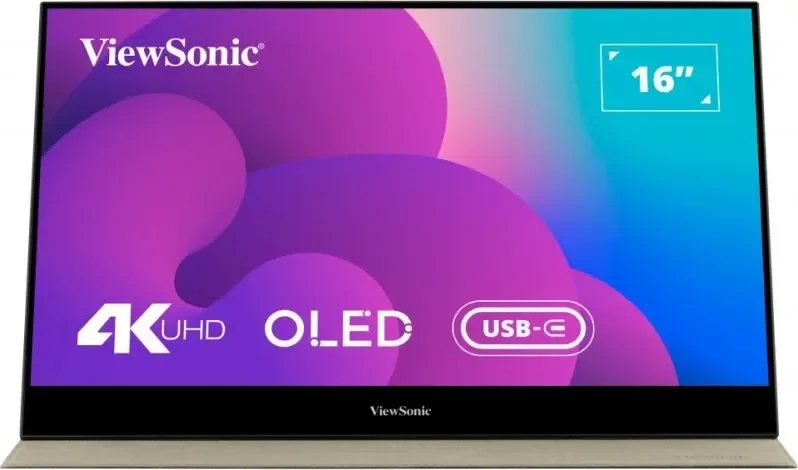 ViewSonic VX1655-4K-OLED 15.6 Inch 4K OLED Portable Monitor
More on portable monitors
Explainer
What DCI-P3, Adobe RGB, and sRGB Actually Mean on a Portable Monitor Spec Sheet
A plain-English decoder for the color gamut percentages on portable monitor boxes: what each standard describes, why over-100% figures mislead, and which number to trust for photo, video, or office work.
Explainer
OLED Burn-In on Portable Monitors: What the Real Risk Is
What long-term tests and reviewers actually report about OLED burn-in on portable monitors, when to worry, when to shrug, and when IPS is the calmer buy.
Explainer
Will a Portable Monitor Work With Your Laptop? USB-C Compatibility Explained
Many portable monitors need DisplayPort Alt Mode over USB-C, and not every USB-C port provides it. Here is how to check your laptop before you buy.